
QuickBooks 1099 Vendor Tracking — The Bookkeeping Backbone of Contractor Reporting for 2026


If your business pays independent contractors and you use QuickBooks Online or QuickBooks Desktop, your accounting software is doing more than tracking expenses. It is the bookkeeping engine that determines whether your year-end 1099-NEC filing is clean, accurate, and on time — or a January scramble of missing W-9s, miscategorized payments, and incorrect totals. QuickBooks 1099 vendor tracking, set up correctly from the start of the year, removes the friction at year-end.
This guide walks through what QuickBooks 1099 vendor tracking is, how to enable QuickBooks Online 1099 setup, how to mark vendor as 1099 in QuickBooks, the role of the 1099 chart of accounts in keeping contractor payments separate from non-reportable expenses, how to prepare 1099 in QuickBooks at year-end, and what the QuickBooks 1099 report tells you. When businesses learn how to track 1099 vendors in QuickBooks correctly from the start of the year, the year-end filing becomes a verification step rather than a reconstruction exercise. The ability to track 1099 vendors in QuickBooks accurately is the foundation that makes everything else work — and getting it right is the kind of compliance question a tax planning firm Irvine business owners trust should be reviewing alongside the bookkeeping. Every step described comes from official Intuit QuickBooks documentation or IRS 1099-NEC filing requirements. This is the bookkeeping link that connects Form W-9 collection (covered in Blog 2) to year-end Form 1099-NEC filing (covered in Blog 1). The right tax planning firm Irvine professionals trust will treat the bookkeeping setup as inseparable from the tax compliance result.
Why the Bookkeeping Link Matters in the W-9 to 1099 Workflow
The W-9 to 1099 workflow has five linked steps (onboarding, payment tracking, year-end review, 1099 preparation, and filing). The middle step — payment tracking — is where most year-end 1099 problems originate. Without reliable bookkeeping for 1099 contractors, the business has no clean way to know which contractors crossed the new $2,000 threshold for 2026 under OBBBA Section 70433, which payments were for services versus goods, and which payments were made via methods that exclude them from 1099 reporting (credit card and third-party payment networks, which go on 1099-K instead).
QuickBooks 1099 vendor tracking solves this by linking three pieces of data: the vendor's profile (collected from the W-9), the payment record (entered as bills, checks, or direct deposits), and the categorization of those payments through the 1099 chart of accounts. When all three pieces are in place, year-end 1099 preparation becomes a verification exercise rather than a reconstruction exercise (source: Intuit QuickBooks, Set Up Contractors for 1099s, quickbooks.intuit.com/learn-support/en-us/help-article/payroll-setup/set-contractors-track-1099s-quickbooks).
This is why bookkeeping services Irvine business owners use are increasingly building the 1099 process into the bookkeeping engagement from day one — not bolting it on in January. The cost difference between year-round vendor tracking and January-emergency 1099 reconstruction is significant, and the IRS penalty exposure (Blog 1 covers the penalty schedule) makes the emergency version even more expensive.
QuickBooks Online 1099 Setup — Enabling the Feature
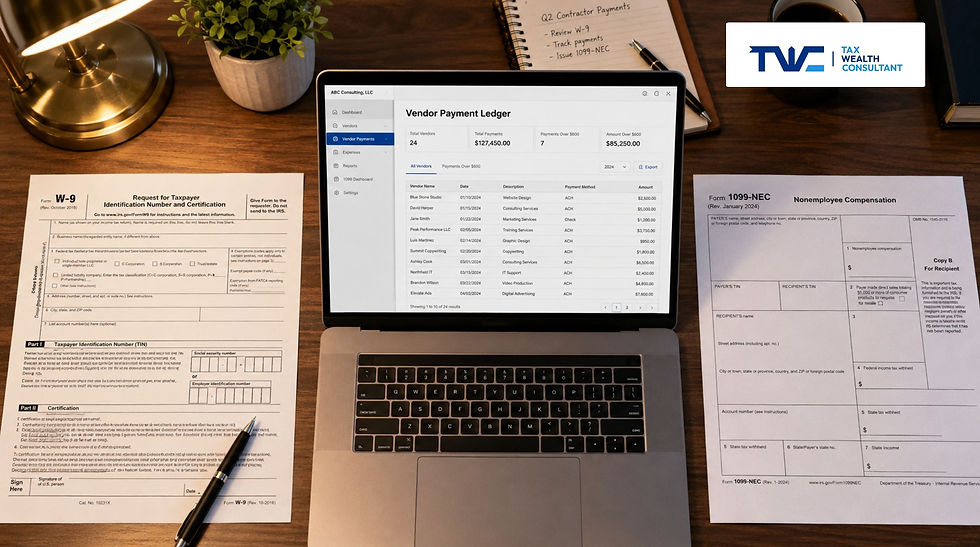
QuickBooks Online 1099 setup begins with confirming that the 1099 tracking feature is enabled in the company file. In QuickBooks Online Plus and QuickBooks Online Advanced, the 1099 vendor tracking feature is included as part of the subscription. QuickBooks Online Essentials and Simple Start have more limited 1099 functionality and may require either an upgrade or an external 1099 filing service to complete year-end reporting (source: Intuit QuickBooks, quickbooks.intuit.com/accounting/contractors).
Once QuickBooks Online 1099 setup is enabled, the software begins tracking payments to flagged vendors in the background. The setup is essentially a one-time configuration per company file. New vendors added throughout the year are individually flagged during their setup as 1099 eligible — covered in the next section.
For QuickBooks Desktop users, the equivalent setup is in the Edit menu → Preferences → Tax: 1099 section, where the company file is configured for 1099 tracking. While the menus differ, the principle is the same: enable the feature, then flag vendors individually as eligible. Both platforms ultimately feed the same year-end QuickBooks 1099 report.
How to Mark Vendor as 1099 in QuickBooks
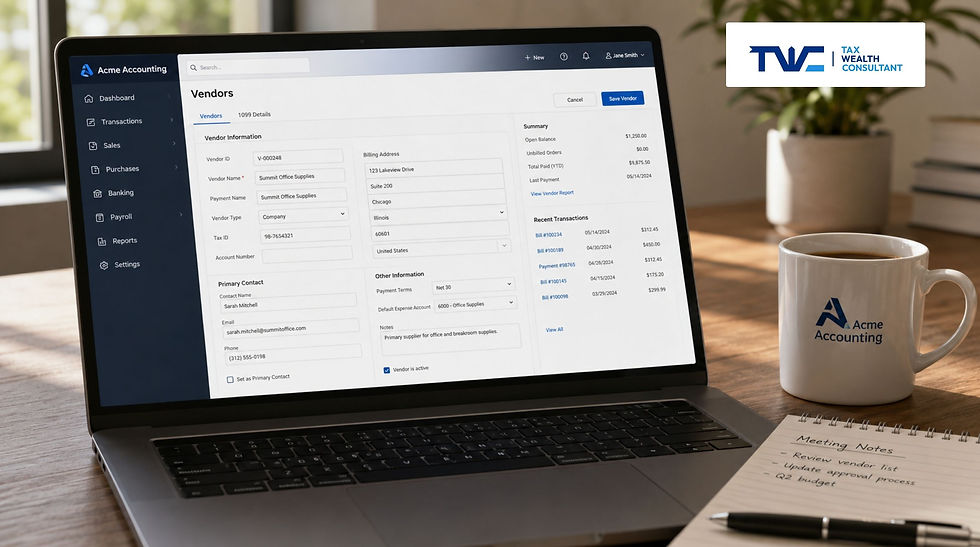
The most critical setup step is to mark vendor as 1099 in QuickBooks for every contractor or vendor who will be paid for services. In QuickBooks Online, this is done in the vendor profile: Expenses → Vendors → select the vendor → Edit → check the box labeled "Track payments for 1099" (or similar wording depending on the QBO version). Without this checkbox enabled, QuickBooks does NOT track that vendor's payments toward the 1099 threshold — even if the payments would otherwise qualify for 1099 reporting.
To create an accurate QuickBooks vendor file 1099 eligible record, the following data must be entered exactly as it appears on the contractor's signed W-9: legal name (Line 1 of the W-9), business name if different (Line 2), address, taxpayer identification number (Part I), and federal tax classification (Line 3a). Mismatches between the QuickBooks vendor file 1099 eligible record and the W-9 cause IRS TIN-mismatch notices (CP2100/CP2100A) and trigger backup withholding requirements (covered in Blog 2). This is why best practice is to update the QuickBooks vendor file 1099 eligible record DIRECTLY from the W-9, not from memory or from an invoice.
A common QuickBooks 1099 contractor setup mistake is to enter the LLC or DBA name on Line 1 of the QuickBooks vendor file 1099 eligible record when the IRS requires the owner's individual name for single-member disregarded entities. The W-9 governs — if Line 1 of the W-9 shows an individual name, that name belongs on the QuickBooks 1099 contractor record. The DBA goes on Line 2.
The 1099 Chart of Accounts — Separating Reportable from Non-Reportable Expenses
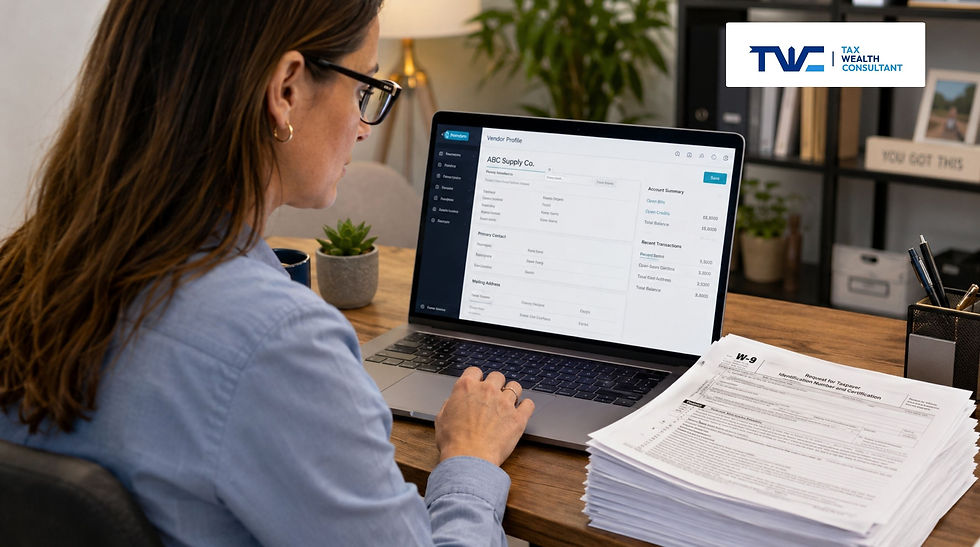
The 1099 chart of accounts is the second pillar of QuickBooks 1099 vendor tracking. The IRS requires that only payments for SERVICES be reported on Form 1099-NEC — payments for goods, equipment rentals, and reimbursements are not reportable as nonemployee compensation. The 1099 chart of accounts is how QuickBooks tells these categories apart at year-end.
HOW QUICKBOOKS USES THE CHART OF ACCOUNTS FOR 1099 TRACKING
Each expense in QuickBooks is categorized to an account (e.g., "Contractor Labor," "Subcontractor Services," "Professional Fees," "Office Supplies," "Rent")
During QuickBooks Online 1099 setup, certain accounts are designated as 1099-eligible (services accounts) and others are excluded (goods, supplies, rent accounts that go on 1099-MISC, etc.)
At year-end, QuickBooks pulls payments to 1099-flagged vendors that were posted to 1099-eligible accounts and totals them per vendor
Vendors whose totals cross the $2,000 threshold (for 2026 payments) appear on the QuickBooks 1099 report ready for review
Bookkeeping for 1099 contractors works best when the 1099 chart of accounts has DEDICATED accounts for contractor labor — separate from general "Repairs," "Supplies," or "Miscellaneous" buckets. Clean account separation is the difference between a 1099 prep session that takes 30 minutes and one that takes a full day reconstructing transactions (source: Intuit QuickBooks, Create and File 1099s with QuickBooks Online).

How to Prepare 1099 in QuickBooks at Year-End
Year-end 1099 preparation in QuickBooks is straightforward when the setup steps have been done throughout the year. The process is essentially a four-step verification workflow:
Step 1 — Open the 1099 wizard: in QuickBooks Online, navigate to Taxes → 1099 filings (or Expenses → Vendors → Prepare 1099s). In QuickBooks Desktop, use Vendors → 1099 Forms → Print/E-file 1099 Forms.
Step 2 — Review vendor information: QuickBooks displays each flagged vendor and the payments tracked for them. Verify the vendor's name, address, and TIN match the W-9 on file.
Step 3 — Confirm threshold and payment categories: QuickBooks applies the IRS threshold ($2,000 for 2026 payments under OBBBA Section 70433; $600 still applies for 2025 payments) and shows which vendors qualify for 1099-NEC. Verify the payments shown are for services, not goods or reimbursements.
Step 4 — Print, e-file, or export: QuickBooks Online can e-file 1099s directly through Intuit's IRS-approved service. Alternatively, the data can be exported to a third-party 1099 e-filing service. Form 1096 transmittal is generated automatically if filing on paper.
How to prepare 1099 in QuickBooks at year-end depends heavily on whether the year-round setup work was done. For businesses that did not mark vendor as 1099 in QuickBooks during the year, the year-end process becomes a reconstruction project: pulling vendor payments manually, cross-referencing against W-9s (if available), and rebuilding the data the software should have been tracking all along. This is where bookkeeping services Irvine business owners use most often add value — by preventing the reconstruction scenario.

The QuickBooks 1099 Report — What It Tells You
The QuickBooks 1099 report is the year-end summary that drives 1099-NEC preparation. The report shows each flagged vendor, the total payments tracked through 1099-eligible accounts during the calendar year, and whether the total crosses the IRS threshold for that vendor. The standard reports are titled "1099 Summary," "1099 Detail," and "Vendor Eligible for 1099" in QuickBooks Online and Desktop (source: Intuit QuickBooks documentation).
Best practice — and the recommendation from most bookkeeping for 1099 contractors workflows — is to run the QuickBooks 1099 report quarterly, not just in January. Quarterly review catches issues that are easy to fix in real time but expensive to fix at year-end: vendors who should have been flagged for 1099 tracking but were not, payments miscategorized to non-1099 accounts, missing W-9s for vendors approaching the threshold. The November or December review is the last clean opportunity to fix issues before the January 31 filing deadline arrives.
When the QuickBooks 1099 report is reviewed properly throughout the year, year-end becomes a verification exercise. The same report that flags issues in November is the report that exports cleanly to Form 1099-NEC in January.

What This Guide Does Not Cover
This guide covers QuickBooks 1099 vendor tracking principles and workflow. It does not cover: (1) Form 1099-NEC filing details, deadlines, and penalties — those are covered in Blog 1 of this series; (2) Form W-9 collection, contractor onboarding, and backup withholding rules — covered in Blog 2; (3) the specific click-by-click QuickBooks setup steps (the Intuit support documentation at quickbooks.intuit.com is the authoritative source for those, and the steps change with each QuickBooks software version); (4) the contractor vs employee classification analysis that determines whether a worker should be reported on 1099 or W-2 — covered in Blog 4 and governed by IRS Publication 1779; (5) the strategic use of 1099 structure as part of broader tax planning — covered in Blog 5. Each of these topics requires personal analysis when applied to a specific business.
Where to Go From Here
If your QuickBooks 1099 vendor tracking is incomplete, your vendor file is missing W-9 data, your 1099 chart of accounts mixes contractor services with operating expenses, or you have never run a QuickBooks 1099 report mid-year, the time to fix the bookkeeping is before year-end — not in the January filing window. Tax Wealth Consultant is an Enrolled Agent tax planning firm Irvine based, serving business owners across Orange County and California. We review your QuickBooks Online 1099 setup, audit your vendor file, identify missing or miscategorized payments, and coordinate the bookkeeping changes needed to keep your contractor reporting clean year-round.

Sources cited in this article: • IRS Form 1099-NEC Instructions — irs.gov/forms-pubs/about-form-1099-nec • One Big Beautiful Bill Act, Section 70433 — Increased 1099 threshold to $2,000 for 2026 • Internal Revenue Code Section 6041 — Information at source • Internal Revenue Code Section 3406 — Backup withholding • IRS Form 1096 — Annual Summary and Transmittal of U.S. Information Returns • Intuit QuickBooks, Set Up Contractors for 1099s — quickbooks.intuit.com/learn-support/en-us/help-article/payroll-setup/set-contractors-track-1099s-quickbooks • Intuit QuickBooks, Create and File 1099s with QuickBooks Online — quickbooks.intuit.com/learn-support/en-us/help-article/form-1099-nec/create-file-1099s-using-quickbooks-online • Intuit QuickBooks, Track 1099 Forms for Contractors — quickbooks.intuit.com/accounting/contractors • Intuit QuickBooks Online help documentation |
Want Clean QuickBooks 1099 Vendor Tracking Year-Round?
Tax Wealth Consultant reviews QuickBooks Online and Desktop company files for 1099 vendor tracking gaps — missing W-9s, miscategorized payments, vendors not marked 1099 eligible, and chart of accounts issues. We coordinate the bookkeeping changes needed to keep your contractor reporting clean from January through December. No sales pitch — just a real review.
Or call (949) 409-8335 — speak with an Enrolled Agent Irvine today
Or email support@taxwealthconsultant.com


Comments